Pages

Followers

Showing posts with label Jailbreak News. Show all posts

06 April 2011

How to Jailbreak Your iPhone 4 Using RedSn0w (Windows) [4.3.1]

These are instructions on how to jailbreak your iPhone 4 on the 4.3.1 firmware using RedSn0w for Windows. The Mac version of this tutorial is here.

Make sure not to update to iOS 4.3.1 if you need an unlock as one is not yet available!


Step One
Create a folder on your desktop called Pwnage

Download RedSn0w from here and place it in the Pwnage folder. Likewise, download the latest 4.3.1 firmware from below and place it in the same folder.

4.3.1 (4 GSM): iPhone3,1_4.3.1_8G4_Restore.ipsw

Extract the RedSn0w zip file into the same folder.


Step Two
Connect your iPhone to the computer and launch iTunes.


Select your iPhone from the list of devices on the left. Now hold down Shift and click the Restore button. Restore is preferred as it won't create any wasted space on your iPhone.
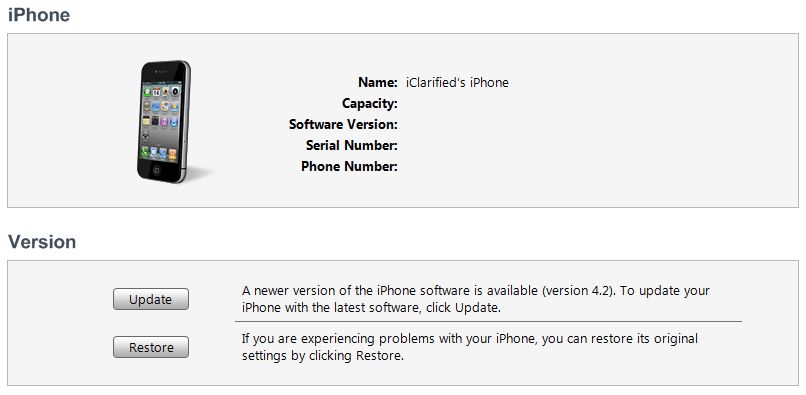

Navigate to the Pwnage folder on your desktop and select the 4.3.1 firmware ipsw. Click the Choose button to continue.


Step Three
Once iTunes has finished updating your iPhone to the desired firmware open the Pwnage folder on your desktop and launch the redsn0w application from the redsn0w folder we extracted earlier.


Step Four
Once RedSn0w opens click the Browse button


Step Five
Select the 4.3.1 firmware ipsw we placed in the Pwnage folder on our desktop then click Open.


Step Six
Once the firmware has been verified click the Next button to continue.


Step Seven
RedSn0w will now prepare the jailbreak data


Step Eight
From this window you can select the jailbreak options you would like.

Make sure Cydia is selected and click the Next button to continue.


Step Nine
Please plug your iPhone into the computer and make sure its OFF then click the Next button


Step Ten
RedSn0w will now guide you through the steps to get into DFU mode. You can find more help with DFU mode here


Hold down both the Home button and the Power button for 10 seconds.


Release the Power button and continue holding the Home button until RedSn0w detects the device.


Step Eleven
Your iPhone will now reboot


Step Twelve
RedSn0w will then begin uploading the new RAM Disk and Kernel.


Step Thirteen
Once this is complete you will be notified that RedSn0w is done. Click the Finish button. When your iPhone finishes rebooting (5 minutes or so) it will be jailbroken with Cydia on the SpringBoard.


*As usual a big thanks to the iPhone Dev-Team and I0n1c for their hard work and contribution to the iPhone community.
**Windows 7 users may want to try running the redsn0w executable mode as an administrator in Windows Vista compatibility mode if you experience any trouble.

14 March 2011

iOS 4.3 Untethered Jailbreak To Drop “Before The Next Weekend”

iPhone security expert and hacker Stefan Esser has now provided an ETA for his untethered jailbreak tool for iOS 4.3. According to the updated YouTube description of his video, he is going to release it as soon as next week.
iOS 4.3
iOS 4.3 Cydia
Good morning.
This video demonstrates my iPad 1 running untethered jailbroken iOS 4.3
The jailbreak uses a *UNDISCLOSED* exploit in the iOS Kernel. Installation is similar to previous iOS versions which means you require a bootrom exploit (or something else) to install it in the root partition.
Because there is no public bootrom exploit for the iPad 2 at the moment it will not work for now.
However the jailbreak can be made compatible with all devices that are vulnerable to the limer4in exploit and that are supported by iOS 4.3
Because of several changes in iOS 4.3 in comparison to iOS 4.2.1 the jailbreak is NOT READY yet. That is what the *ALPHA* means. I need some time to check what kernel patches are actually required to work 100%ly.
However I recommend the dev-team or chronic-dev to first release a *tethered* iOS 4.3 so that everyone can test if their nice feature actually work. I guess most people require Mobile Substrate to work and AFAIK it does not work due to ASLR. It would be a waste if Apple kills an untethered jailbreak before Mobile Substrate works.
That said I will release the jailbreak when a) there is no other untether by the time I am finished b) if MobileSubstrate works.
Any report that I wait for iOS 4.3.1 is just a misinterpretation of my words.
I merely think that Apple should release a iOS 4.3.1 soon, because it is in their interest to not wait for several months when everyone knows that there is a remote exploit in MobileSafari that might have leaked during the #PWN2OWN contest.
Check back in the next days for more information about when and where you can get it.
DO NOT LET YOURSELF GET SCAMMED BY ALL THE OTHERS TRYING TO SELL YOU THIS EXPLOIT. IT WILL NOT LEAVE MY HOUSE BEFORE IT IS FINISHED.
Because so many people are asking for an ETA:
I am pretty sure that the untether will be released before the next weekend. I was using older kernel patches that caused lagging on the jailbroken device. I will change that and then port it to the other devices and release.


As always, we will keep you updated ! Stay tuned for more!

31 October 2010

Unlock for iPhone 3GS, 3G on iOS 4.2 & iOS 4.1 to Drop After 2 Days At Most Once iOS 4.2 is Public

In a reply to one of his many followers on Twitter, MuscleNerd of iPhone Dev Team has confirmed that ultrasn0w unlock for iPhone 3GS and iPhone 3G on iOS 4.1 and iOS 4.2, with 05.14.02 baseband will be released in a day or two at most, once iOS 4.2 is released to public.

iOS 4.2 Unlock

simplysaru: @MuscleNerd thanks.. how long would the wait be for 4.2 any approximate time
MuscleNerd: @simplysaru if you’re on 3G or 3GS, just a day or 2 at most after 4.2 is public (just enough time to verify stuff)

Since the baseband OS on iPhone 4 is different than its predecessors, it will probably take a little more time for the devs to figure out unlock for iPhone 4 on 2.10.04 baseband, on iOS 4.1 and iOS 4.2.
Apple is expected to release iOS 4.2 sometime in November this year.
Stay tuned ! We will let you know as soon as iOS 4.2 is available to public, followed by the Ultrasn0w unlock for iPhone 3GS and 3G, running iOS 4.2 / 4.1.

17 October 2010

iPhone Dev-Team found a way to ‘PWN’ all A4 iDevices


According to MuscleNerd, the iPhone Dev-Team may have found a method to jailbreak (untethered) all future firmware versions for iDevices running on the A4 chip.
This may be good news in this long-running cat & mouse game with Apple. For now,  those intending to jailbreak the current iOS 4.1 firmware, we have Limera1n & Greenpois0n at your service, sir.

14 October 2010

How to Jailbreak Your iPhone 3GS, iPhone 4 Using Greenpois0n (Windows)

These are instructions on how to jailbreak your iPhone 3GS and iPhone 4 using Greenpois0n for Windows. Greenpois0n only supports iOS 4.1 firmware. Use Limera1n if you want to jailbreak iOS 4.0, iOS 4.0.1, iOS 4.0.2.

Remember: Do not update to iOS 4.1 if you need the unlock. Ultrasn0w does not support that baseband yet. The only exception is the iPhone 4. You can update to iOS 4.1 without upgrading your baseband by following this tutorial.

Step One
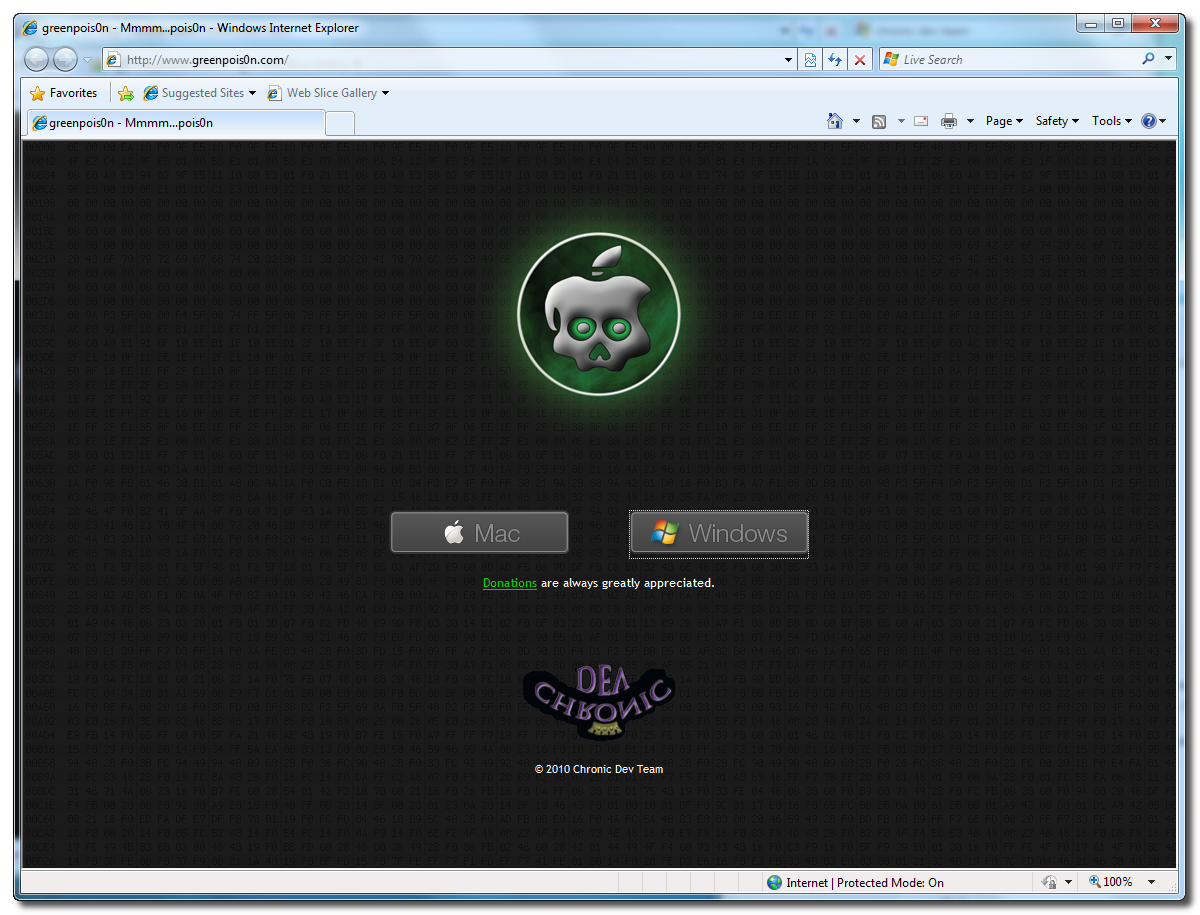
Open your web browser of choice and navigate to http://www.greenpois0n.com. Click the Windows link at the bottom of the screen.


Step Two
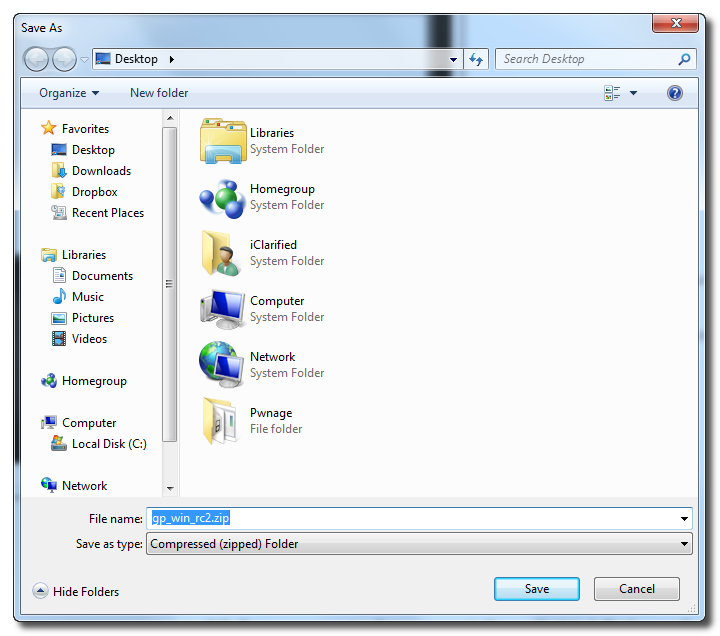
When prompted save the download to your desktop


Step Three
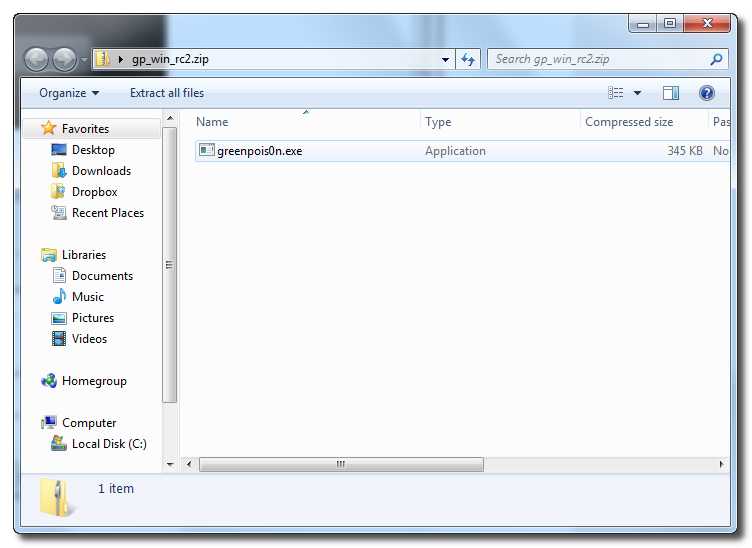
Double click the downloaded gp_win_rc2.zip file then drag the greenpois0n.exe file to the desktop. Double greenpois0n.exe from the desktop to launch the application


Step Four
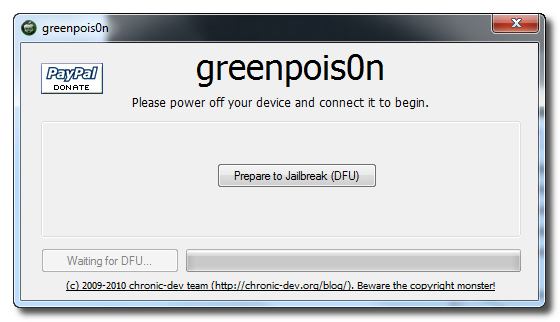
Power off your iPhone then click the large Prepare to Jailbreak (DFU) button


Step Five
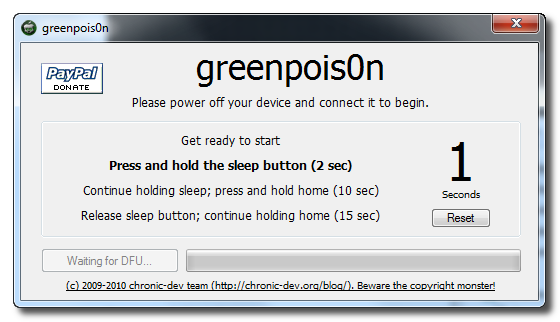
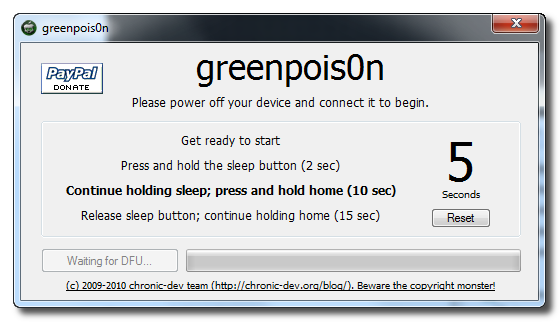
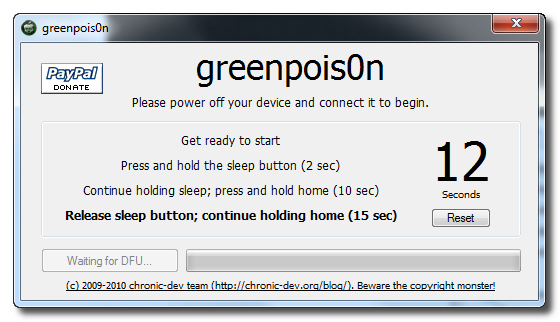
You will now be instructed on how to place your iPhone into DFU mode. You can get help with this here.

You will be asked to press and hold the sleep button for 2 seconds.


Continue holding sleep; press and hold home for 10 seconds.


Release sleep button; continue holding home for 15 seconds.


Step Six
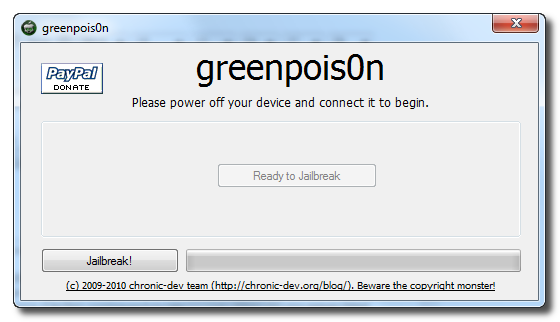
Once your iPhone is successfully in DFU mode you may click the Jailbreak button.


Step Seven
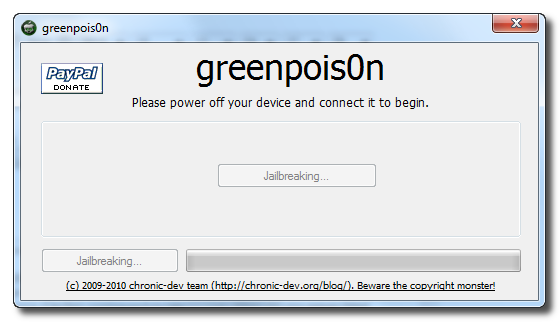
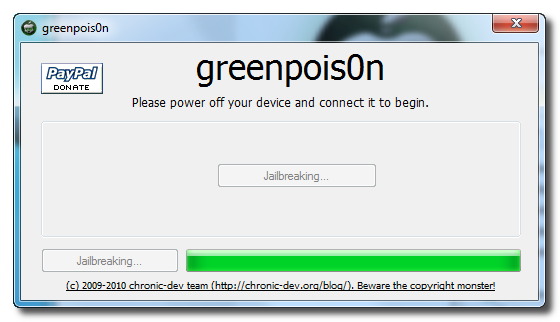
Greenpois0n will now jailbreak your device


Step Eight
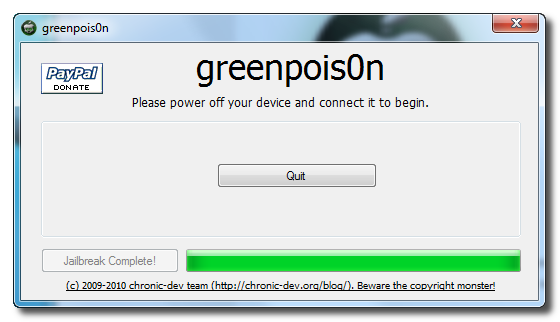
Click the Quit button once the software application has completed.


You'll notice some verbose mode text scrolling on your device.

Step Nine
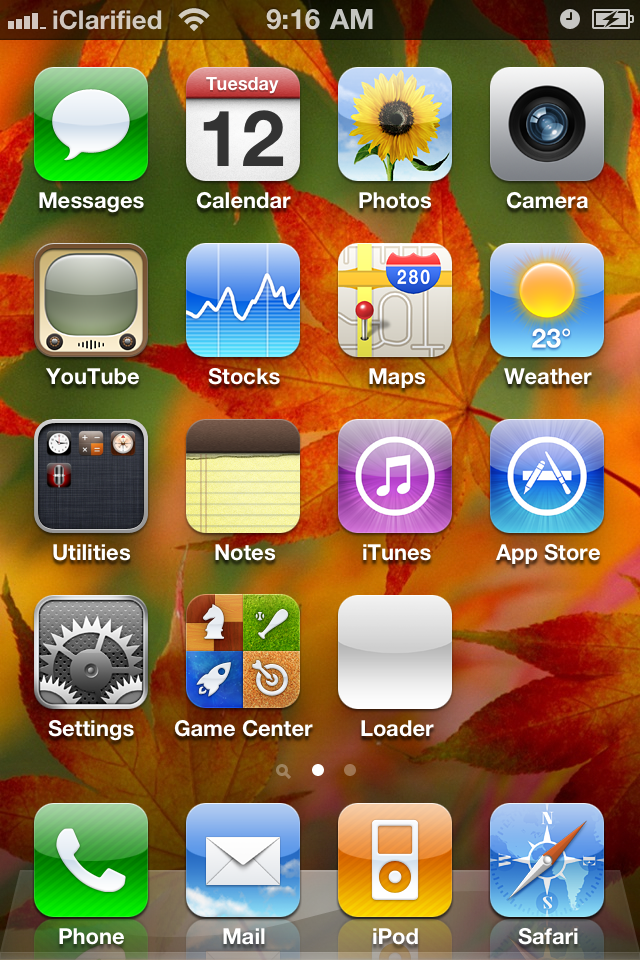
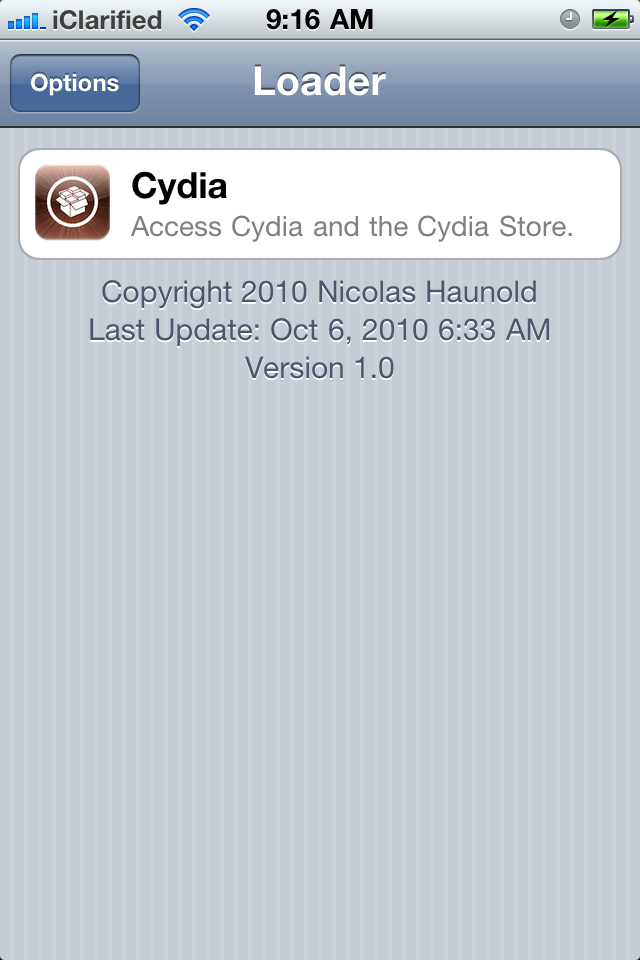
After the iPhone restarts you'll notice a new Loader application on your Springboard. Press to launch it.


Step Ten
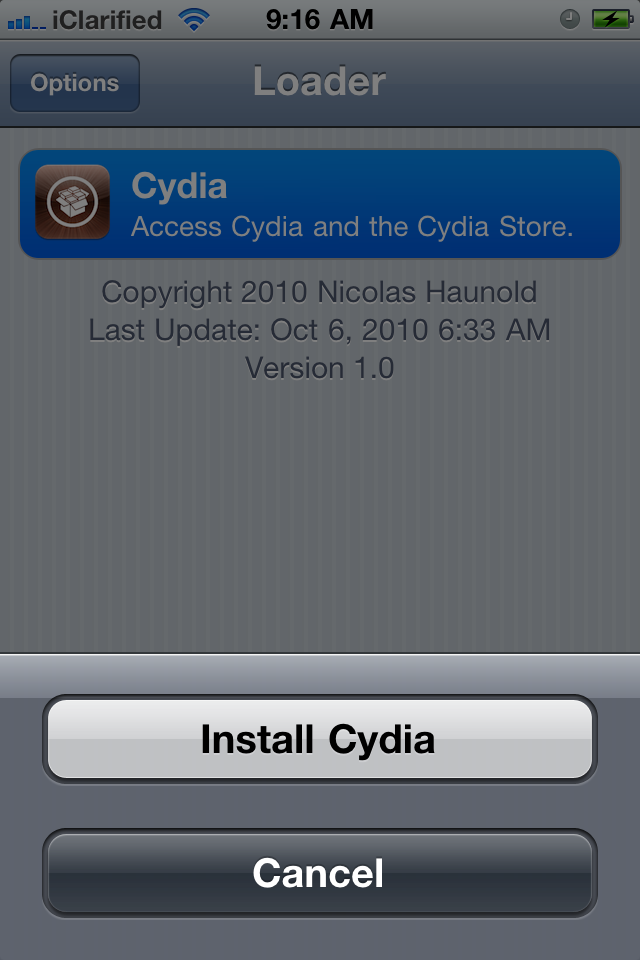
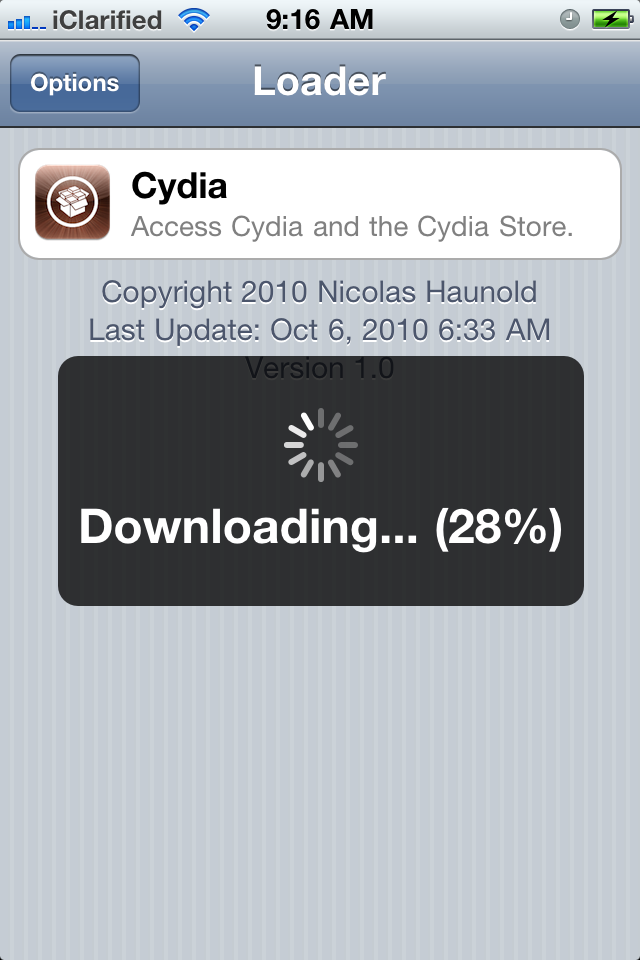
Press to select Cydia then press the large Install Cydia button that appears.


Step Eleven
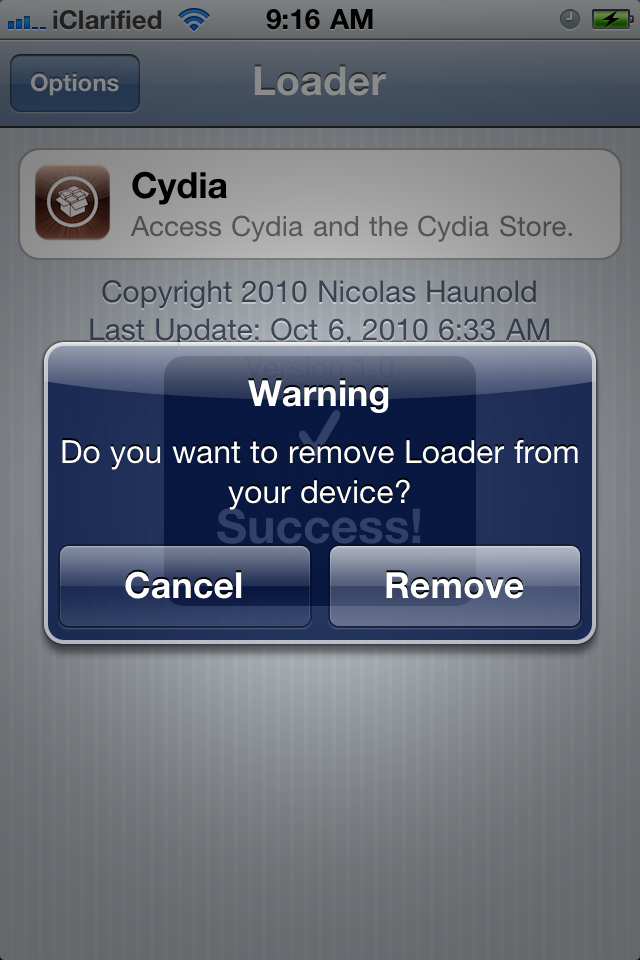
Once Cydia has installed successfully you will be asked if you want to remove Loader from your device. Press the Remove button then press the Home button. Your device will now automatically reboot.


Step Twelve
When your iPhone has restarted you can run Cydia. Let it do all the necessary updates then follow our Unlock tutorial if possible for your device.


***A big thanks goes everyone who made this jailbreak possible.

10 October 2010

How to Jailbreak Your iPhone 3GS, iPhone 4 Using Limera1n (Windows)

These are instructions on how to jailbreak your iPhone 3GS and iPhone 4 using Limera1n for Windows. Limera1n supports iOS 4.0, 4.0.1, 4.0.2, and 4.1.

Remember: Do not update to iOS 4.1 if you need the unlock. Ultrasn0w does not support that baseband yet. The only exception is the iPhone 4. You can update to iOS 4.1 without upgrading your baseband by following this tutorial.

Step One
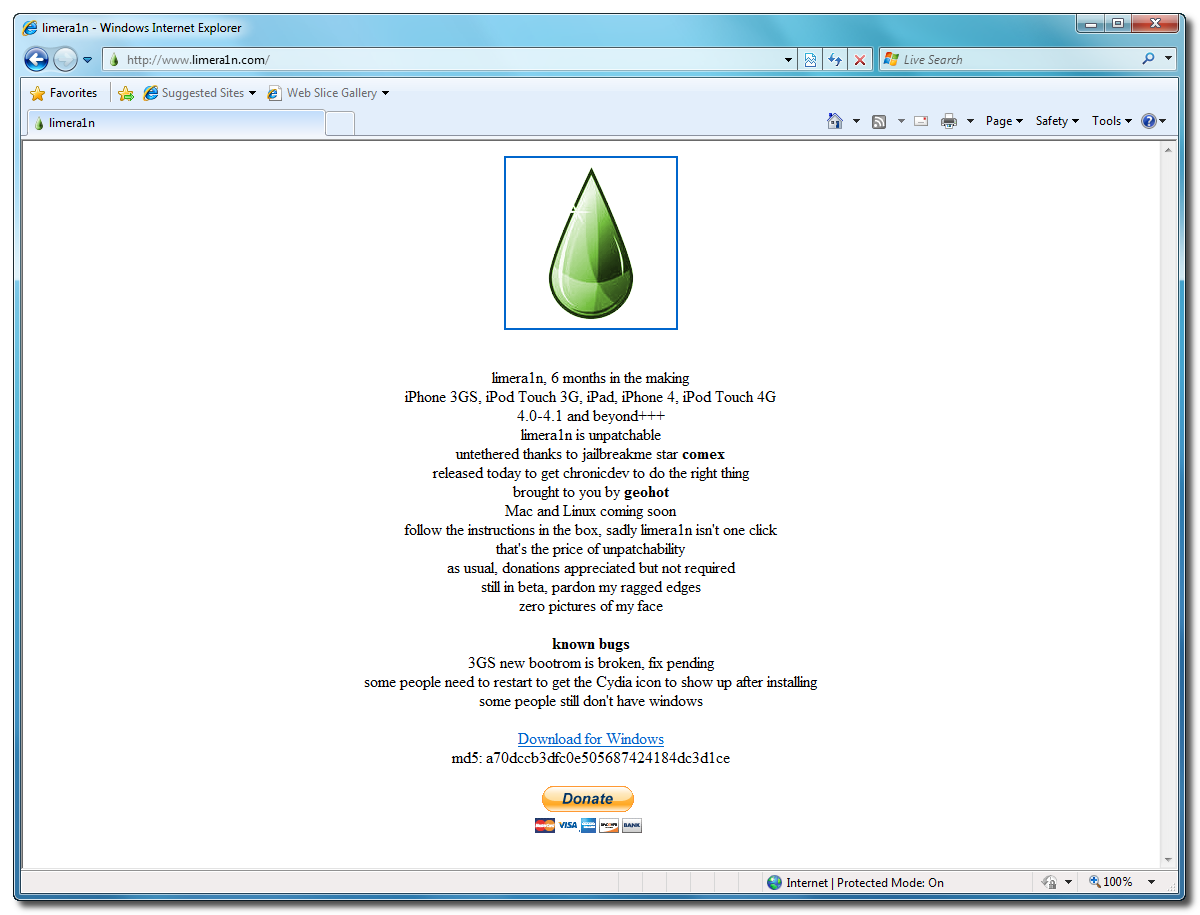
Open your web browser of choice and navigate to http://www.limera1n.com. Click the Download for Windows link at the bottom of the screen.


Step Two
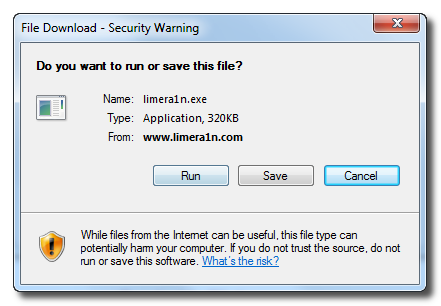
When prompted save the download to your desktop


Step Three
Double click the limera1n.exe file from the desktop to launch the application


Step Four
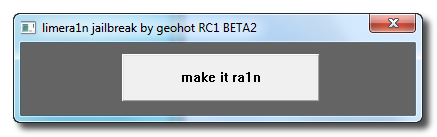
Click the large make it ra1n button


Step Five
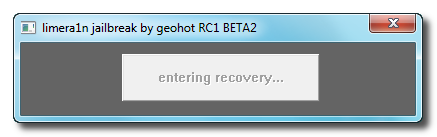
You iPhone will now be placed in recovery mode.
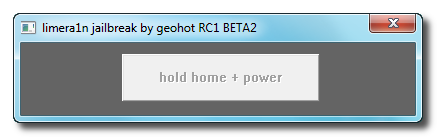
Press both the power and the home buttons.

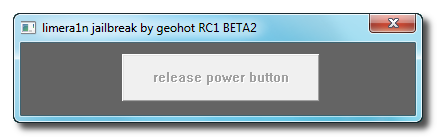
When Limera1n asks you to, release the power button.


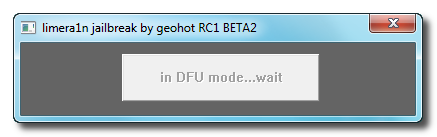
Your phone will now be in DFU mode


As limera1n performs its exploit you will see the image of a lime raindrop on your iPhone.


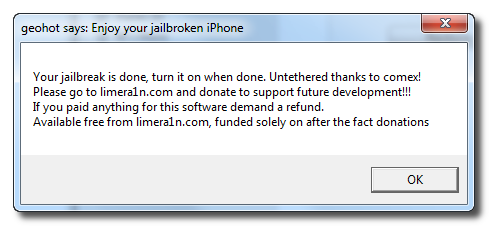
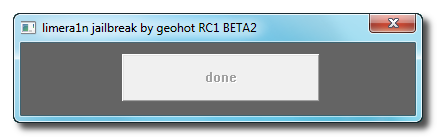
Limera1n will let you know when it is complete.


Step Six
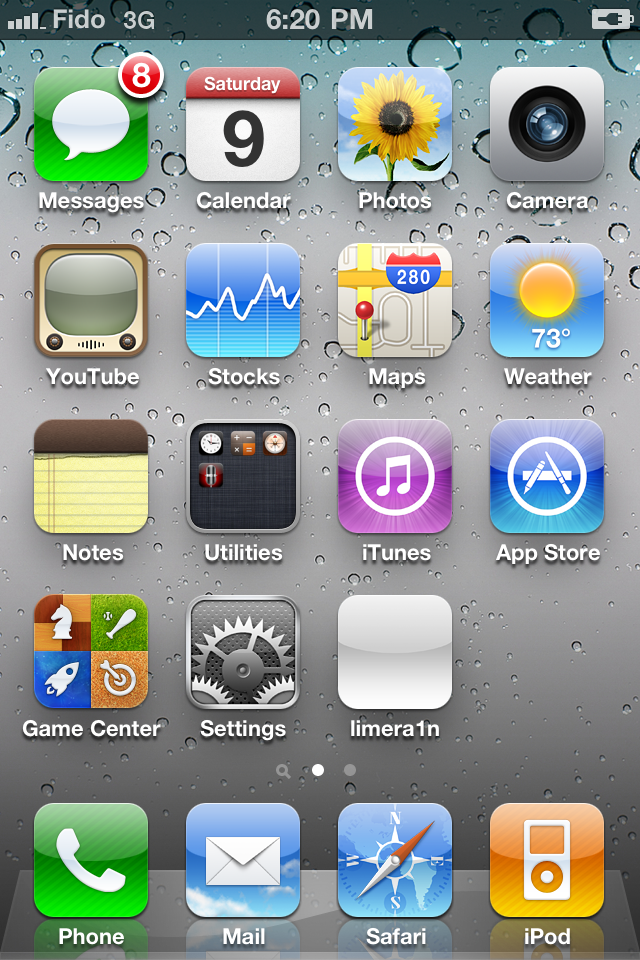
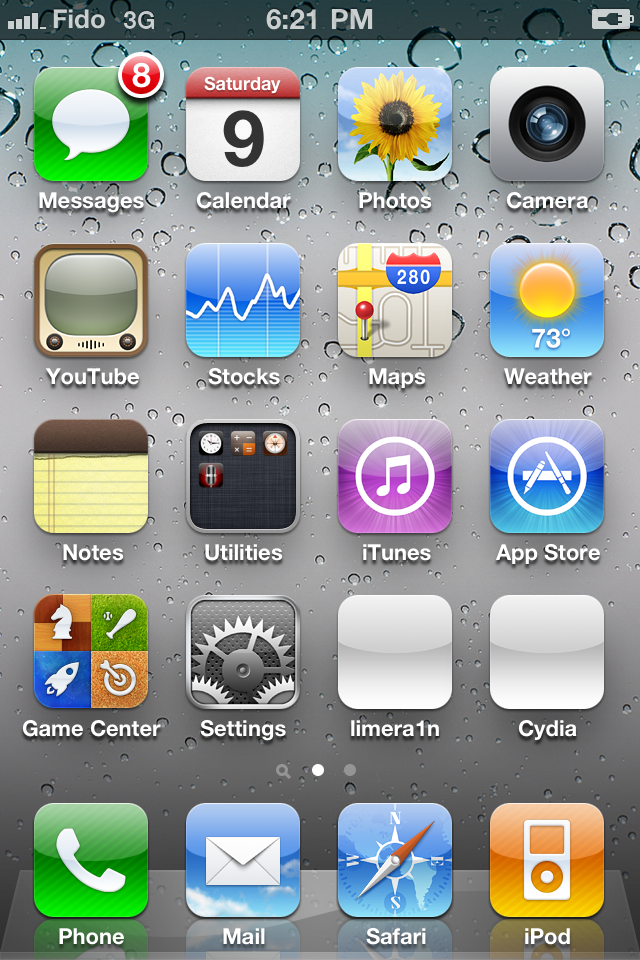
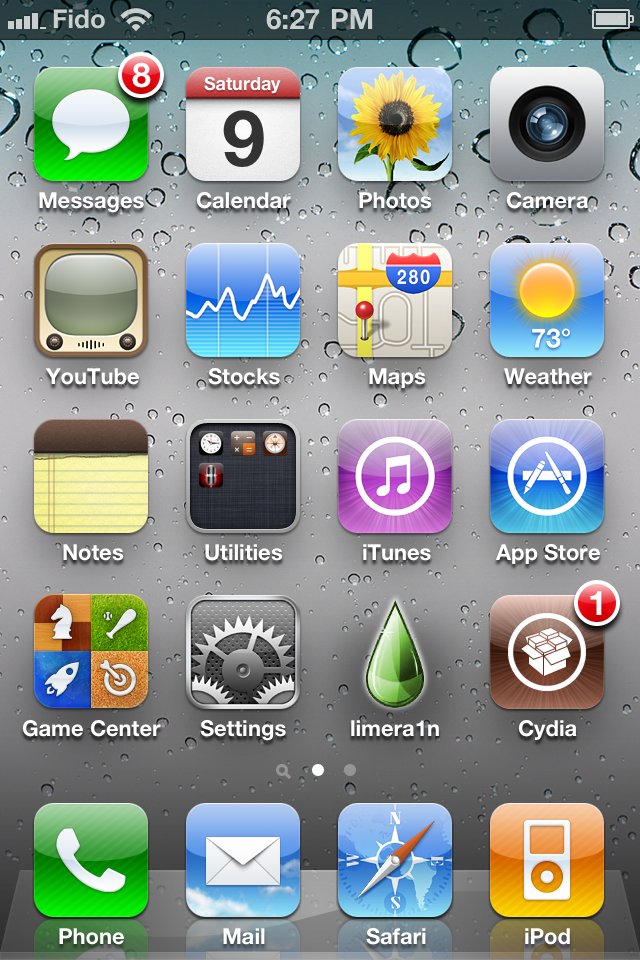
After you power back on your iPhone you will see a new icon on the SpringBoard entitled limera1n. Press it to continue.


Step Seven
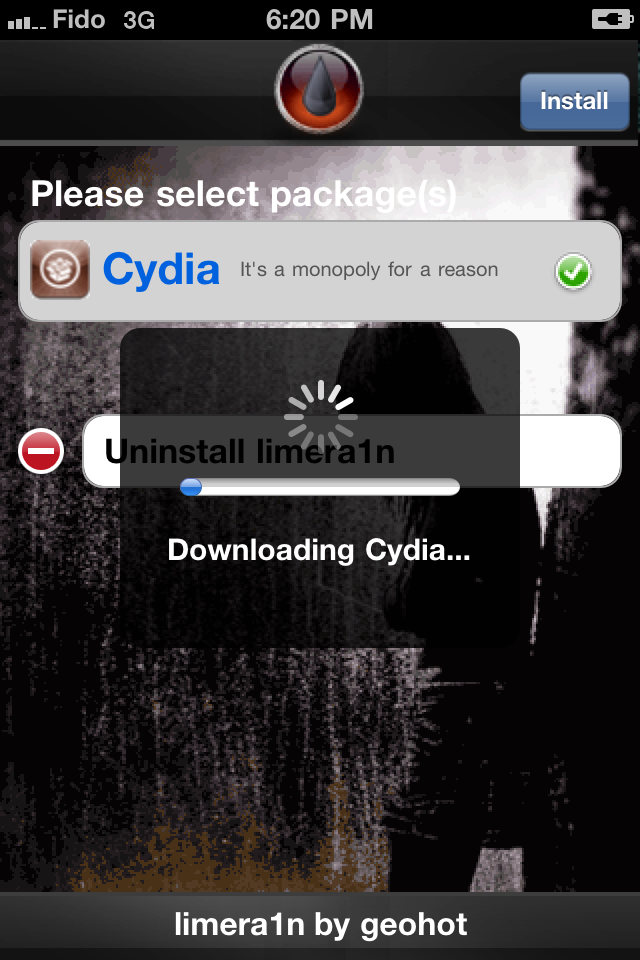
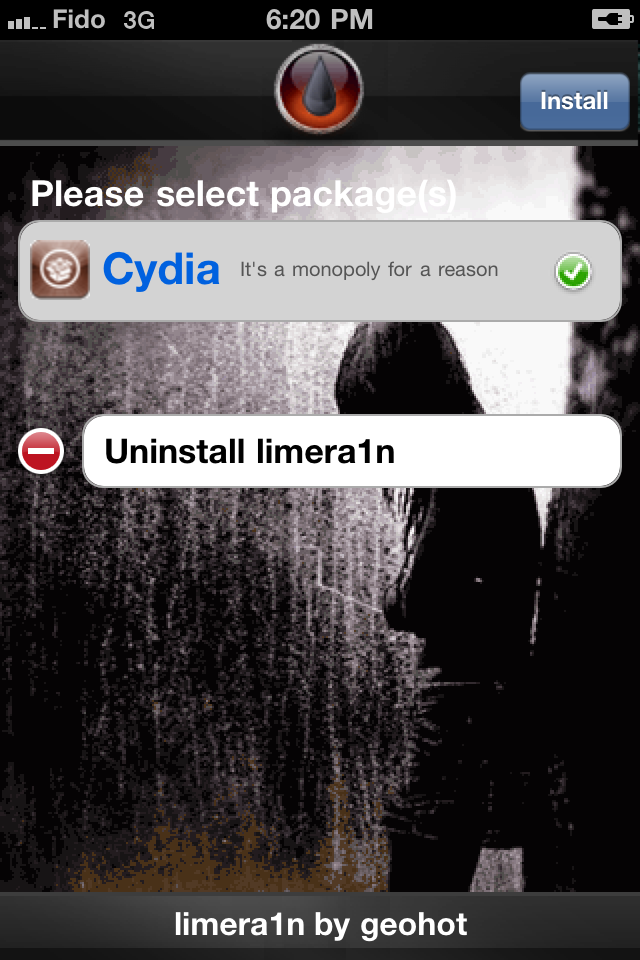
Once Limera1n opens select Cydia then press the Install button at the top right of the screen.


Step Eight
Once the Cydia installation has completed you must reboot your iPhone.


Step Nine
When your iPhone has restarted you can run Cydia. Let it do all the necessary updates then follow our Unlock tutorial if possible for your device.


NOTE*: To remove the limera1n icon from your desktop you can install CyDelete from Cydia then use it to delete the application. Eventually this capability should be present in limera1n itself.

***A big thanks goes everyone who made this jailbreak possible.